
Security and Obscurity
When you expose your Raspberry Pi to the internet as a web server, people will try to access it — automated bots start scanning within minutes of a new server coming online. The good news is that most of them are looking for obvious targets. Understanding your access logs helps you spot what they're after and close the gaps.
We often rely on our security being through some sort of obscurity. “If they don’t know about it , they can’t use it to get in.” Common household door locks only have so many combinations, yet we can rely on the lock of our front doors because we know that a thief would have to try every combination or break-the-door-down. However, on the Internet, who is watching your front door, so a thief cannot try every combination? Fortunately, our web server keeps an access log — a file that records every request made to the server, including the IP address, timestamp, and what was requested — and it’s automatically archived for us. Let’s start there and see if anyone has left their “footprints” on your web server.
Is anyone trying to gain access?
If you are running a LAMP stack (Linux, Apache, MySQL, and PHP — the four open-source components that power most self-hosted web apps) on a Raspberry Pi, open a terminal and run the following command to see recent entries in your access log:
cd /var/log/apache2/This command decompresses all archived log files and lists every IP address that has accessed your server, sorted by visit frequency — the most frequent visitors appear at the top:
zcat access.log* | awk '{print $1}' | sort -n | uniq -c | sort -nr | head -20The output should be a list with two columns, one containing the number of entries counted, and the second column is the IP address associated with each web request made. The easiest way to get the most information from a reverse IP lookup is by using the following command:
curl ipinfo.io/REPLACE.WITH.IP.ADDRESS.TO.LOOKUP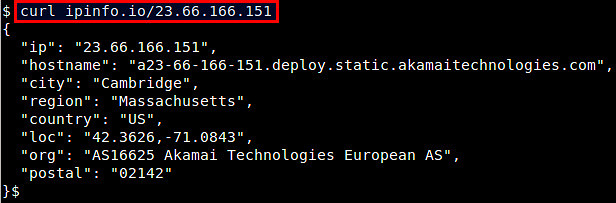
Rather than rely on an external web service, you can do some digging after you install some tools that are not included by default with the Pi:
sudo apt-get install geoip-bin
geoiplookup IP.ADDRESS
Here is a good article on using geoiplookup. Even more advanced digging not included by default with the Pi:
sudo apt-get install dnsutils
dig -x IP.ADDRESS
Does the location seem suspicious? Use grep (a tool that searches text for matching patterns) to find all log entries from that IP address — zgrep works the same way but also searches inside compressed archive files:
zgrep 'IP.ADDRESS' access.log* -1By looking at the web requests that were made from the IP address, you can determine whether the activity is suspicious. Typically, you will find that these IP addresses are from bots looking for vulnerabilities in your security. You can manually block IP addresses to your blacklist or you can just deny all and allow select IP addresses. If you haven’t already, you’ll want to install and setup a firewall.